I usually have two or more sessions running at a time either in the same or different project directories. One of the longest and most used sessions I have is in my notes directory, where I am constantly creating specs or taking notes on the stuff I am working on.
One problem when running multiple Claude Code sessions in different terminal windows or tabs is visually distinguishing them.
Claude’s team recently released /color and /rename slash commands in Claude Code in v2.1.75. Together, they can turn anonymous Claude Code sessions into visually distinct workspaces. And this kind of solves the problem of visually separate multiple sessions on my end.
The /color allows changing the color of the prompt bar. For example, if I type /color orange in a currently active session, I immediately see it. Below is an example of two sessions running in the same directory. The first session has the default prompt color which matches my iTerm2 theme and the second session’s prompt bar:

Before /color, these sessions looked identical. I’d glance at a terminal tab, guess which session it was, and then had to look a bit deeper to recall what the session was about.
For a full list of available colors, see the official docs.
Also, notice that both sessions say “Claude Code (node)” in the header of each terminal tab in iTerm. This can be modified using /rename, which lets me name a session and also affects the prompt bar.
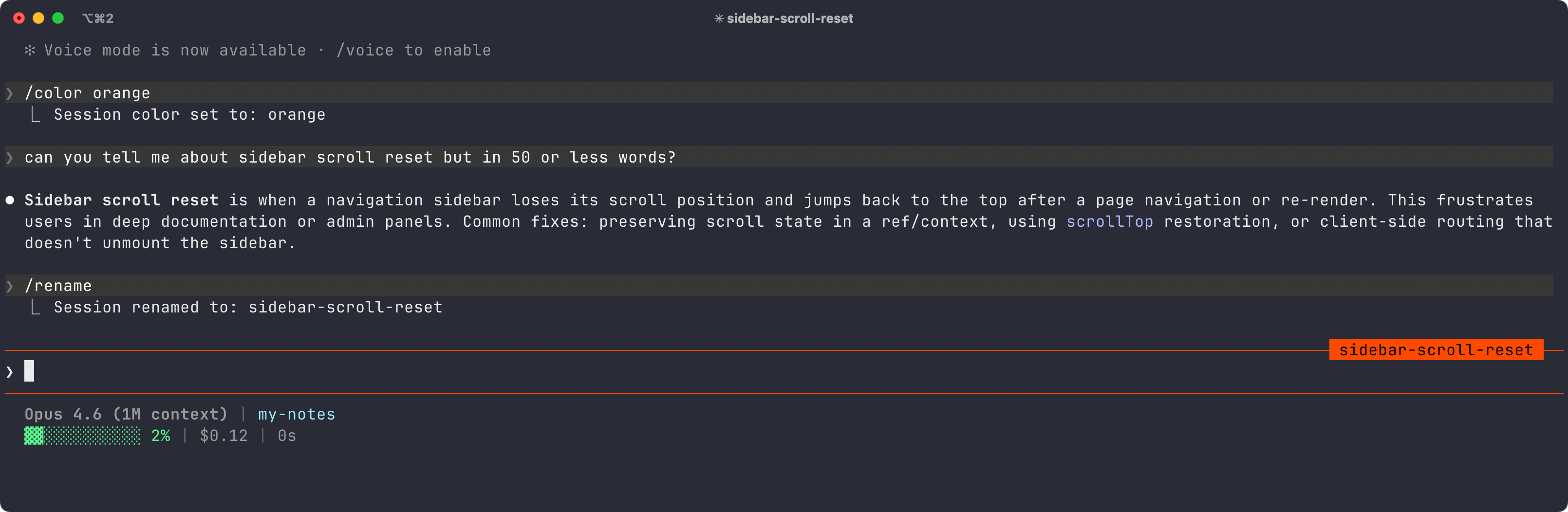
By default, /rename command without an argument will auto-generate a name based on a session. I can override this by /rename your-session-name:

/rename command also affects the name of the terminal session window/tab. After setting it up or using the auto-generated session name, in iTerm2, the header reflects the same value.
This solves a huge problem for me because iTerm2 has profile-based coloring and I use the default profile for all sessions.
Now, I can also trigger a new session that has the color set by default for that session:
claude "/color yellow"The above command will automatically trigger the session with the prompt bar’s color already set to the color yellow.

However, this does not allow chaining slash commands yet. This means, I cannot run claude "/color yellow" "/rename notes". If you want to automate this, one little thing I’ve done is set a specific color at the start of a session for a specific project by creating an alias in my .zshrc like:
alias cnotes="claude '/color yellow'"This way, I can run the alias command when starting a new session in the specific directory every time.
